Connecting Your Own IDP (Microsoft Entra)
This article describes how to connect your own identity provider (IDP) to the noris Enterprise Cloud (nEC), using Microsoft Entra as an example.
The following steps are covered:
- Creating and configuring an enterprise app in Microsoft Entra
- nEC (VMware Cloud Director) SAML configuration
- Importing metadata (Entra enterprise app & VMware Cloud Director)
- Assigning users/groups to roles in VMware Cloud Director (nEC)
Prerequisites in Microsoft Entra
Section titled “Prerequisites in Microsoft Entra”- Role: at least Cloud Application Administrator or Application Administrator.
- License: assigning groups to an enterprise app requires one of the following licenses:
- Microsoft Entra Suite
- Microsoft Entra ID Governance
- Microsoft Entra ID P2
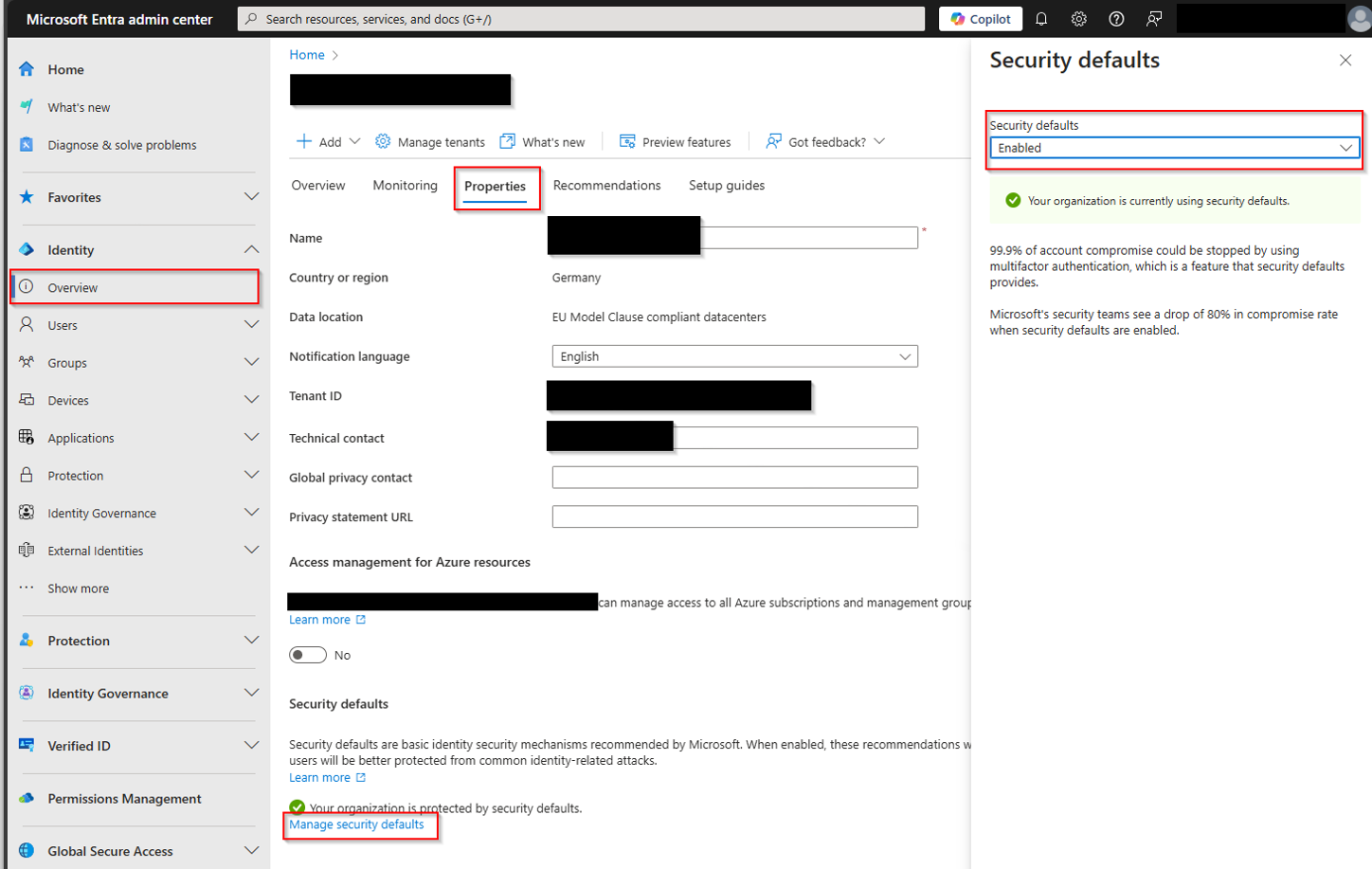
- Multi-factor authentication (MFA): to use MFA, it must be enabled in Microsoft Entra, this is strongly recommended. This can generally be configured in two different ways:
-
Security defaults: Security defaults are a feature for paid Microsoft 365 and Office 365 or trial subscriptions created after October 21, 2019. These subscriptions have default security settings enabled. Starting with the first sign-in after security defaults are enabled, users have 14 days to register with the Microsoft Authenticator app for MFA. After this period, the user can only sign in once MFA registration is complete. For tenants created earlier, security defaults must be enabled manually.
-
Conditional access policies: Granular configuration is possible via conditional access policies, which let you define different policies based on various criteria. Documentation: learn.microsoft.com
-
Link to VMware’s vendor documentation: docs.vmware.com
Creating and configuring an enterprise app in Microsoft Entra
Section titled “Creating and configuring an enterprise app in Microsoft Entra”- Sign in to the Entra ID admin center.
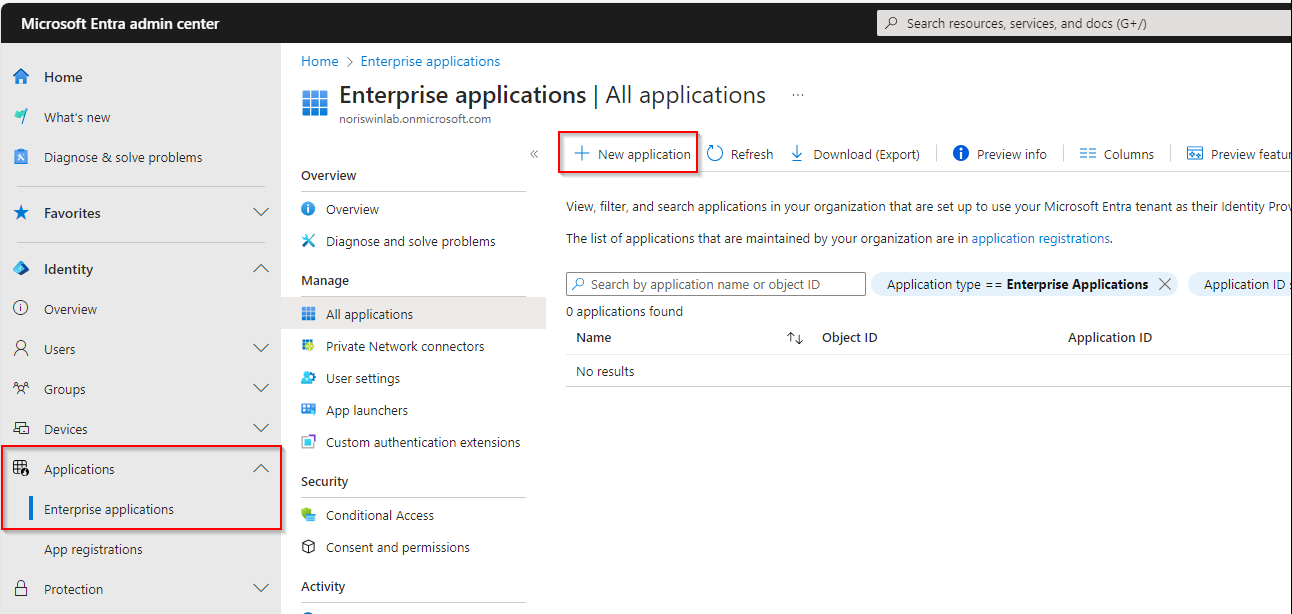
- Create an enterprise app.
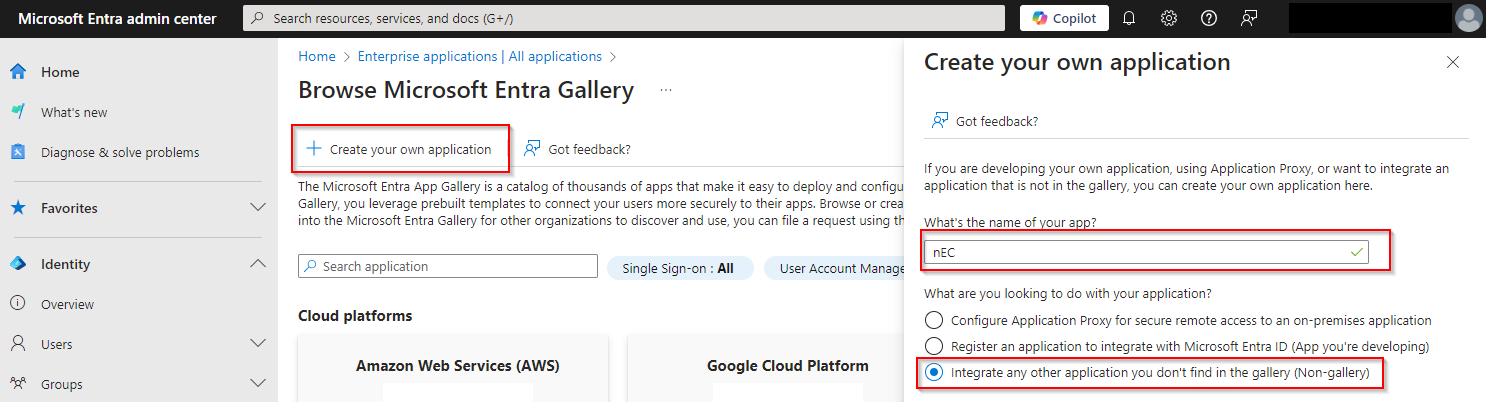
- Create your own application.
- Assign a name.
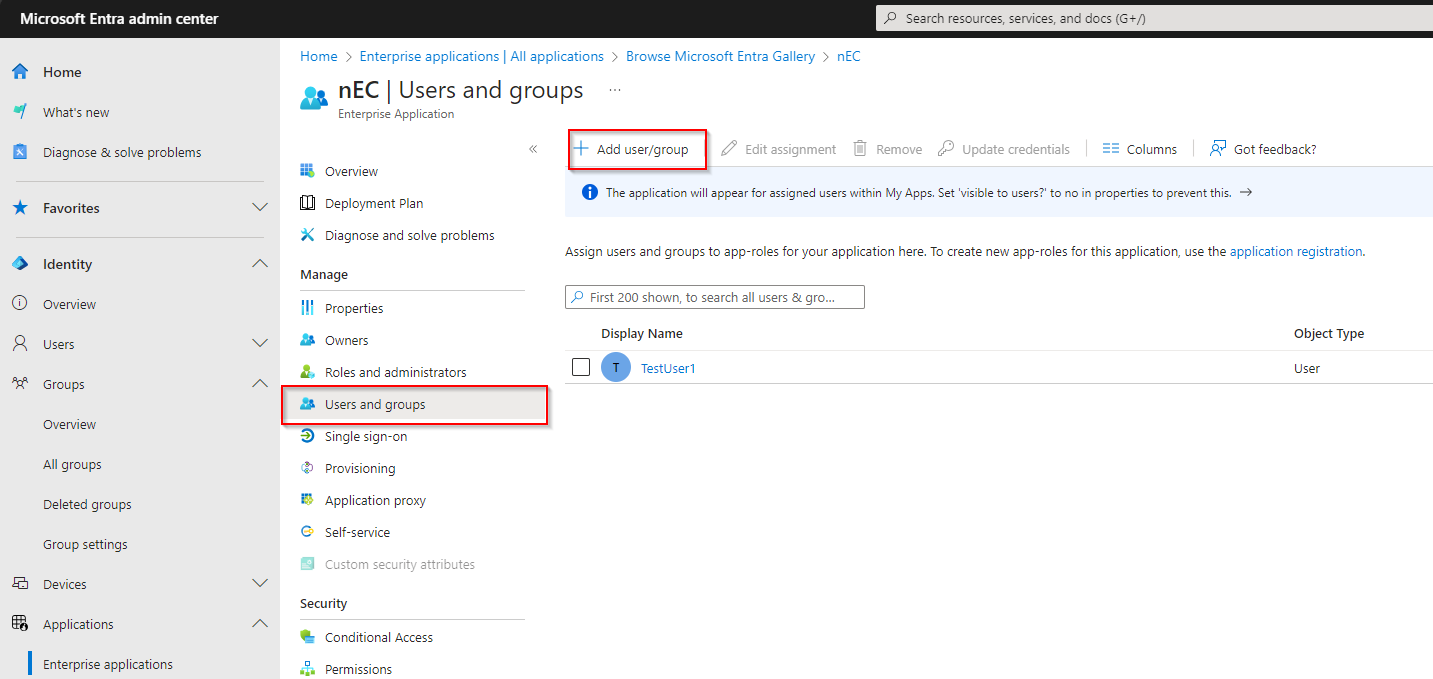
- Add users or groups to the app.
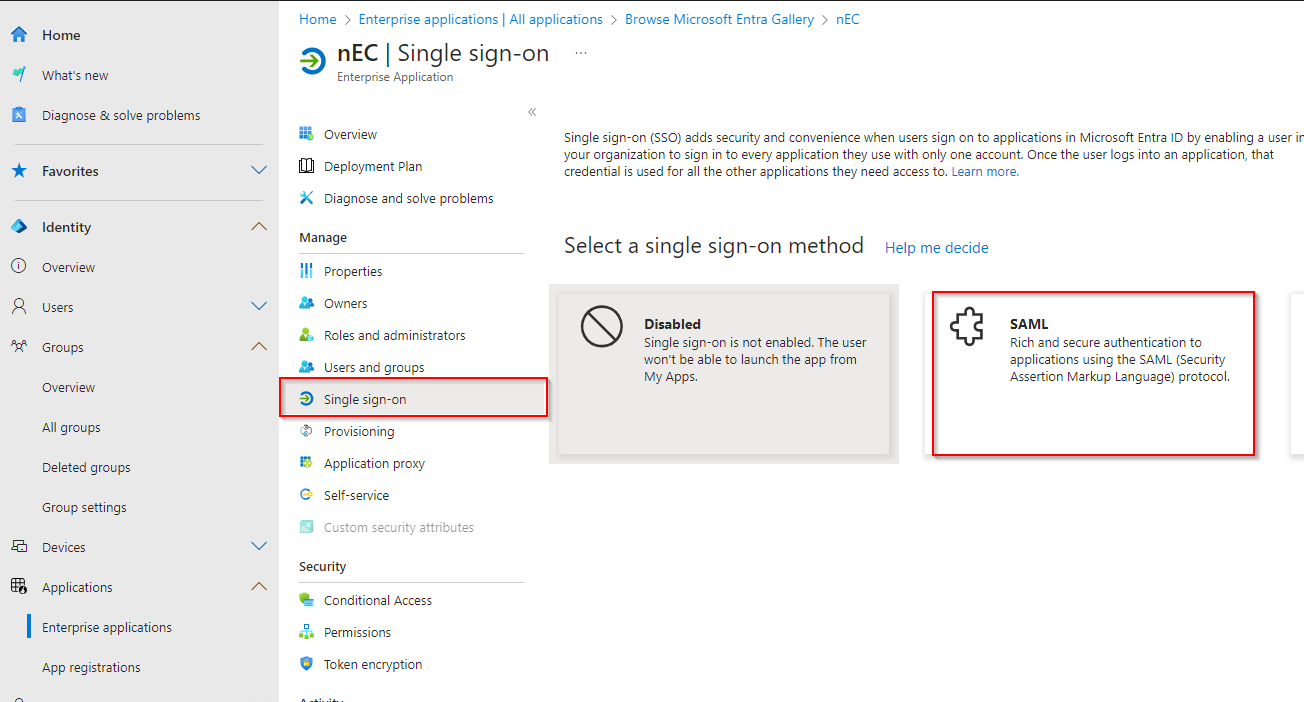
- Configure Single Sign-On.
- Select SAML.
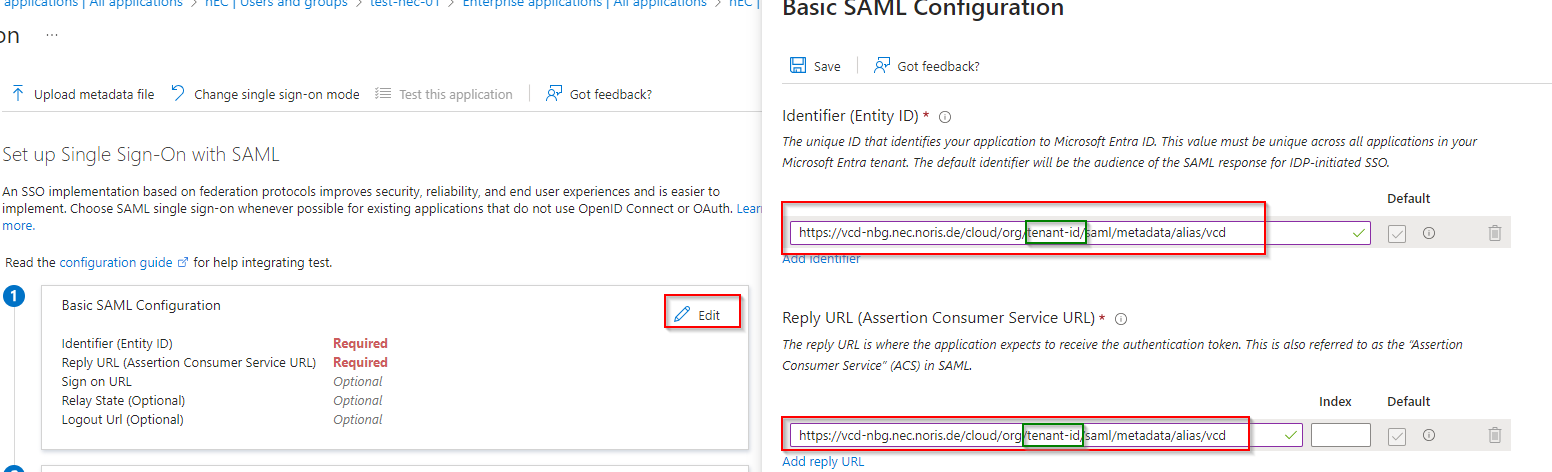
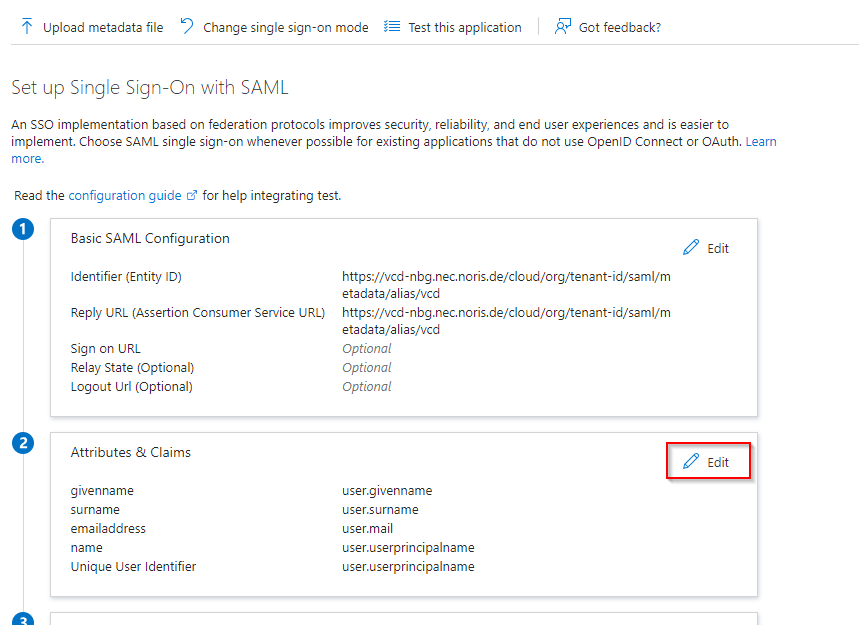
- Adjust or add attributes & claims: “Add new Claim”.
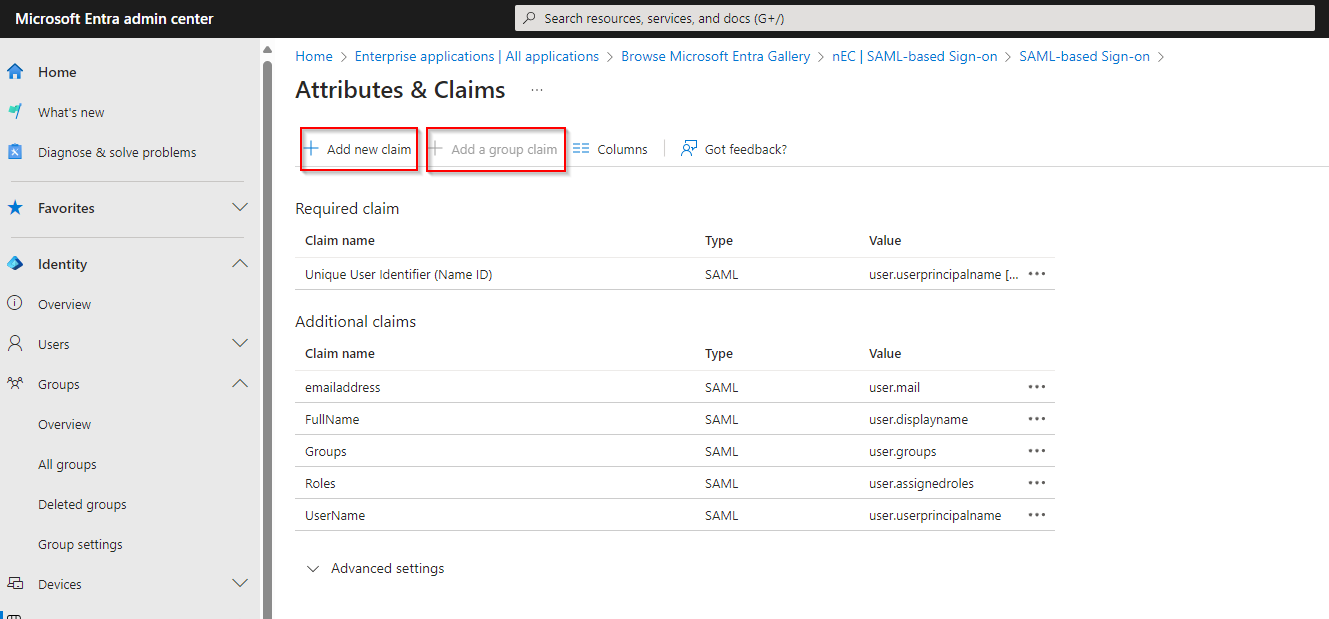
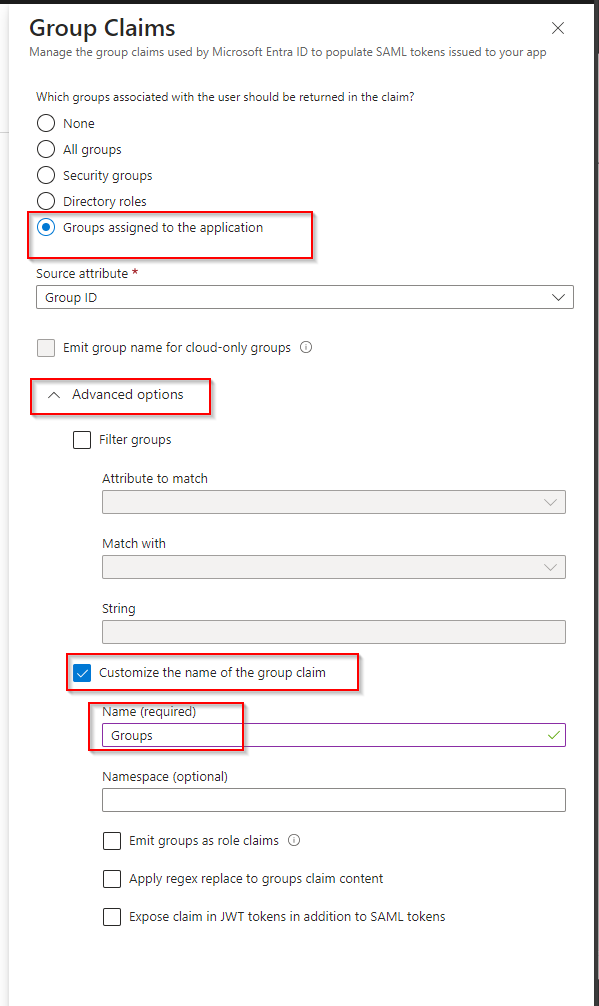
- For “group” only: “Add a group claim”.
nEC (VMware Cloud Director) SAML configuration
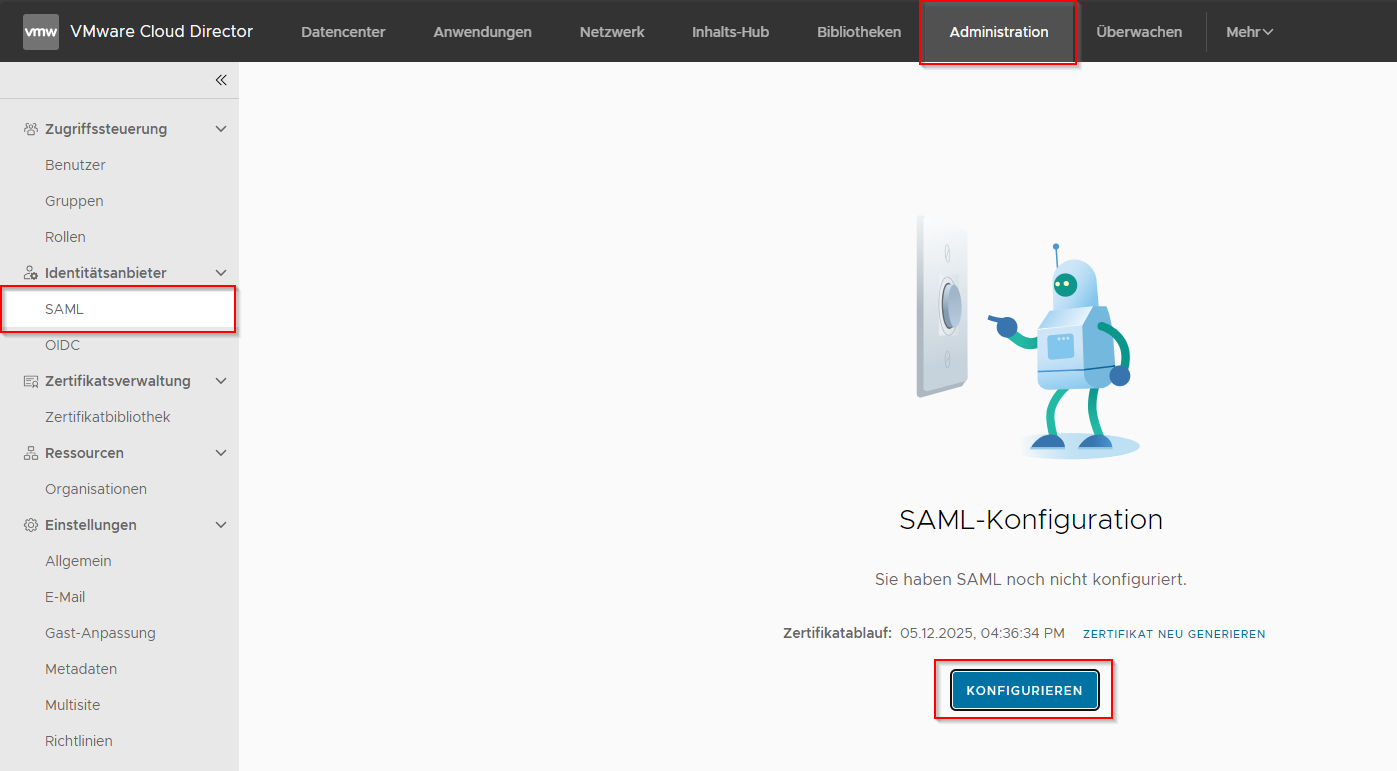
Section titled “nEC (VMware Cloud Director) SAML configuration”- Basic IDP configuration in VMware Cloud Director.
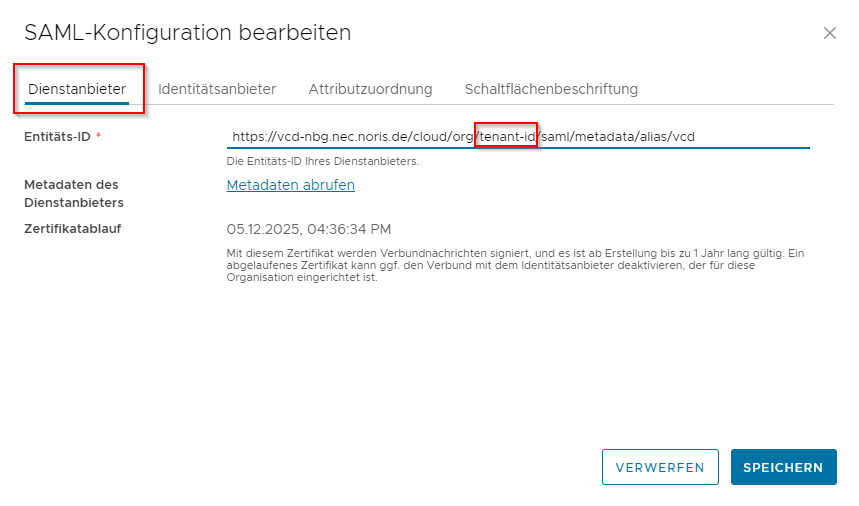
- Add the entity ID.
Importing metadata (Entra enterprise app & VMware Cloud Director)
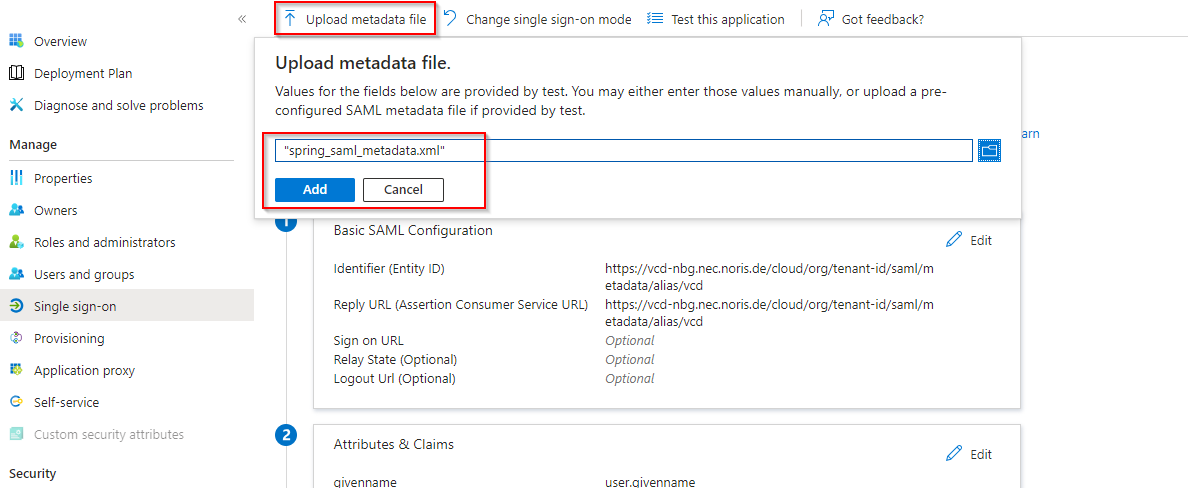
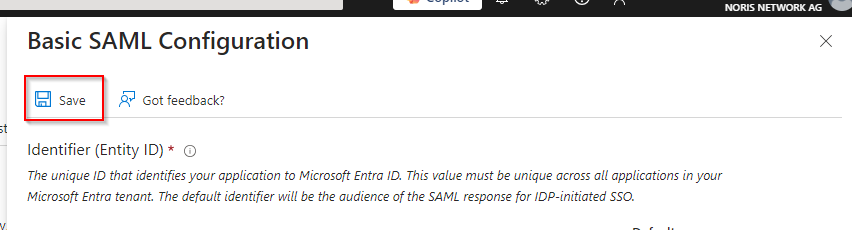
Section titled “Importing metadata (Entra enterprise app & VMware Cloud Director)”- Download the metadata from the Entra enterprise app.
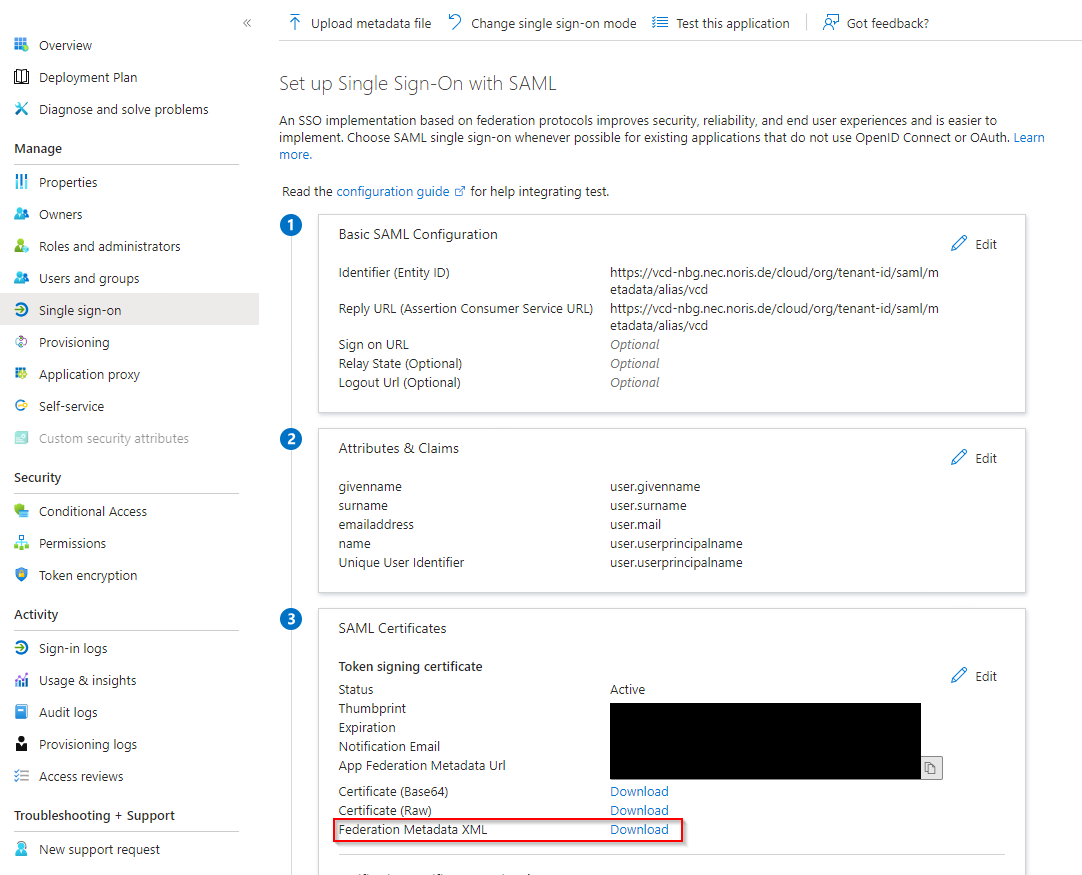
- Upload the downloaded metadata from the Entra enterprise app into VMware Cloud Director.
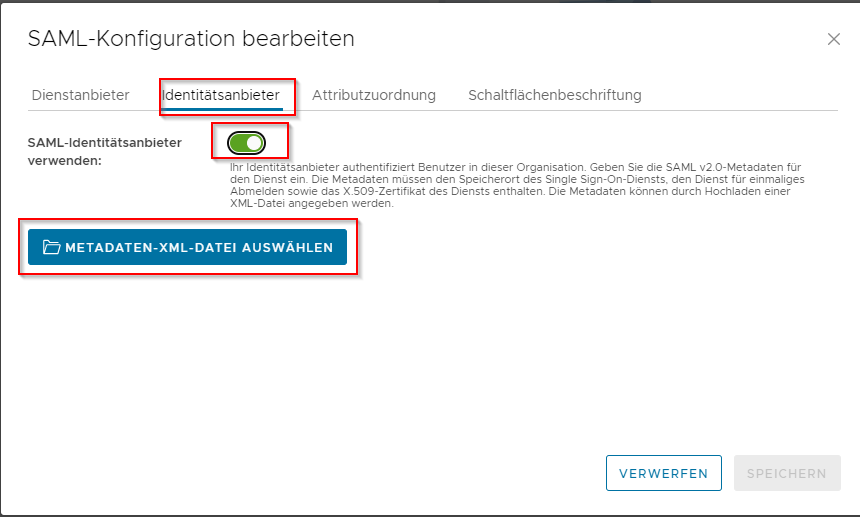
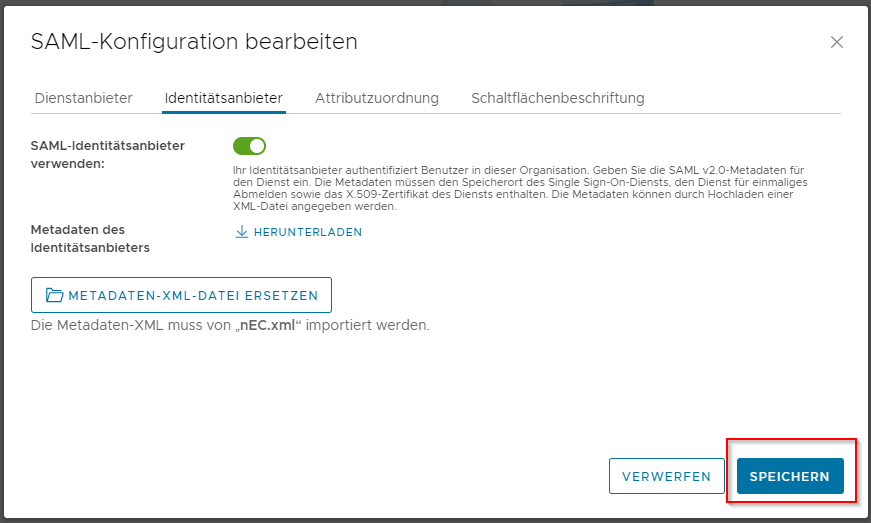
- Download the metadata from VMware Cloud Director.
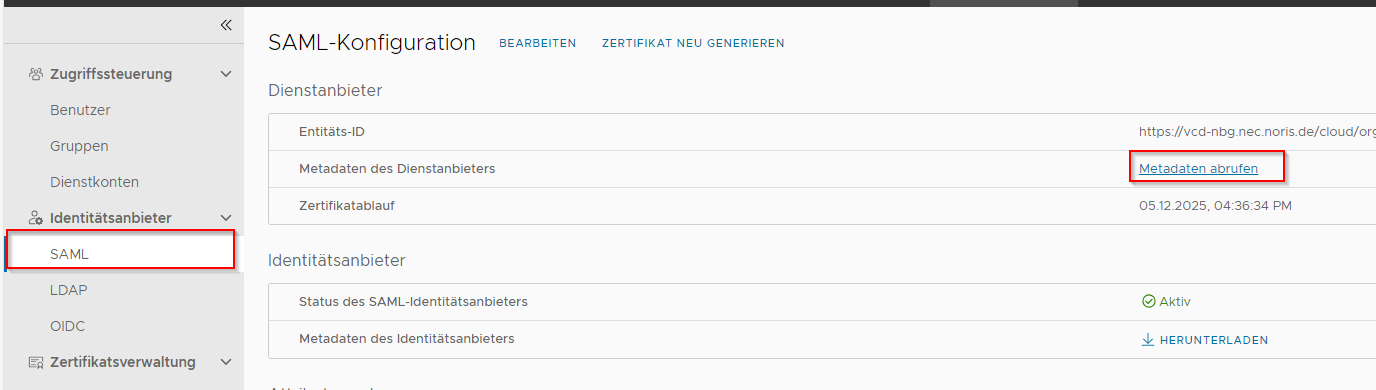
- Upload the downloaded metadata from VMware Cloud Director into the Entra enterprise app.
Assigning users/groups to roles in VMware Cloud Director (nEC)
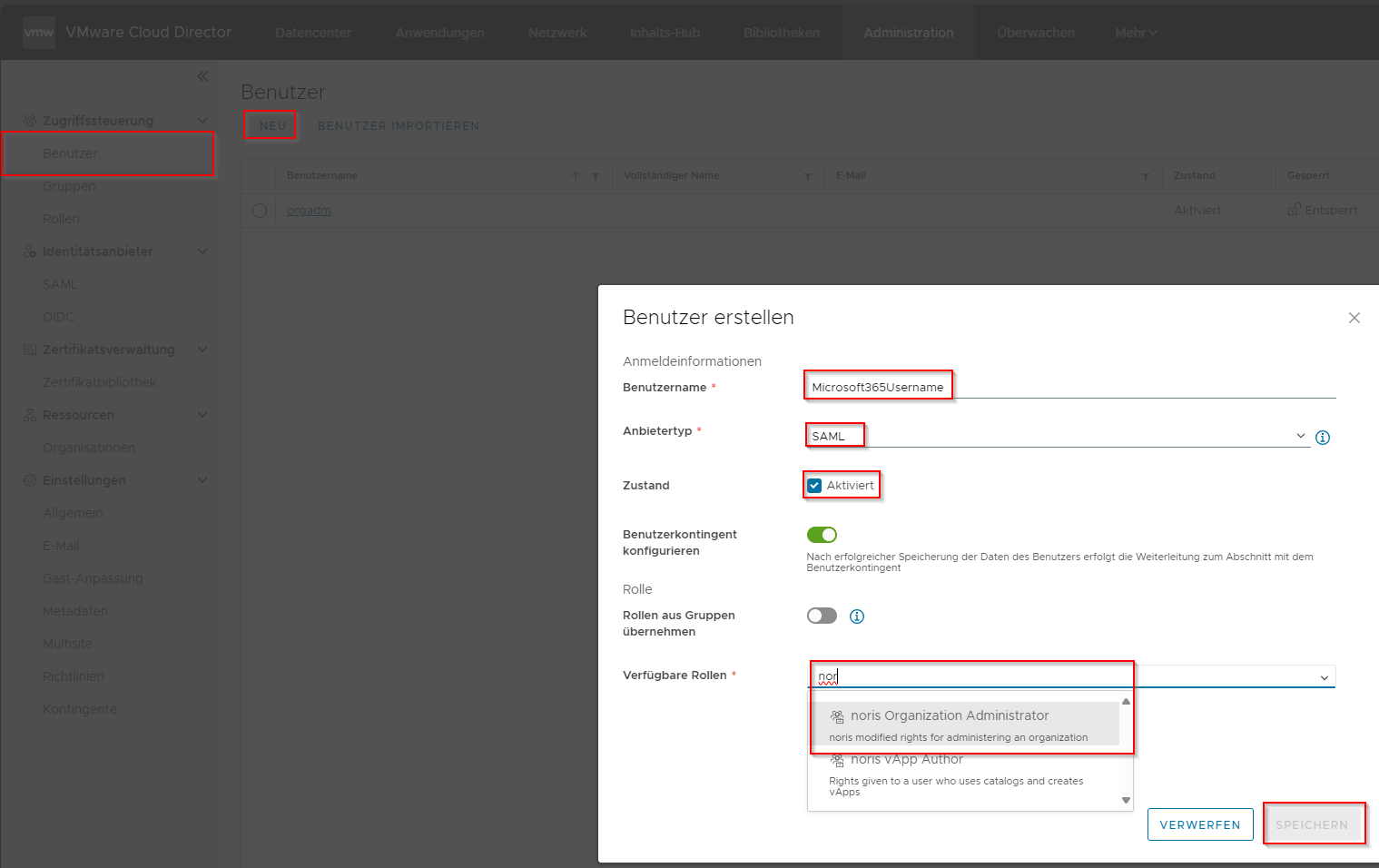
Section titled “Assigning users/groups to roles in VMware Cloud Director (nEC)”Option 1: Assigning individual Microsoft Entra users in VMware Cloud Director
Section titled “Option 1: Assigning individual Microsoft Entra users in VMware Cloud Director”- Enter the Microsoft Entra user’s name under “new user”.
Option 2: Assigning Microsoft Entra groups in VMware Cloud Director
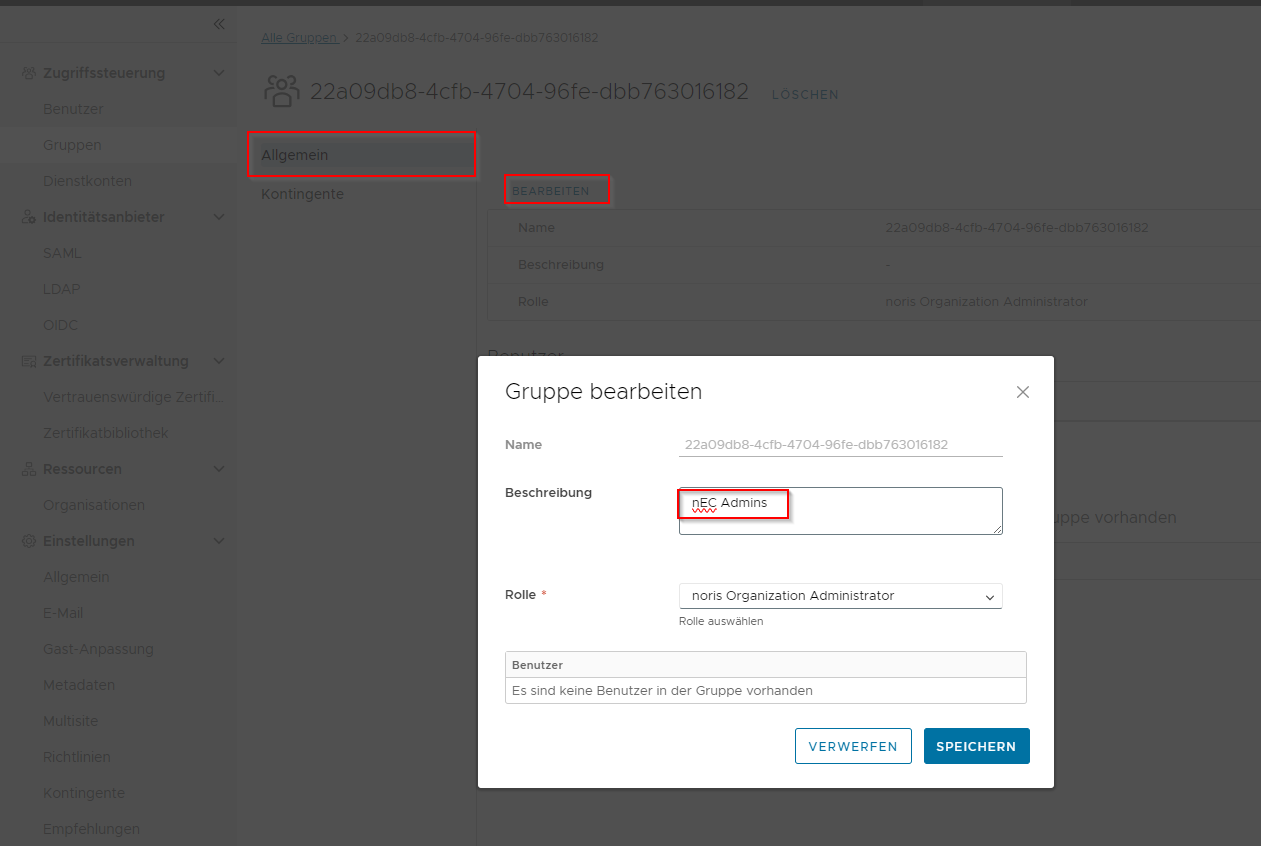
Section titled “Option 2: Assigning Microsoft Entra groups in VMware Cloud Director”- Copy the object ID of the Entra group.
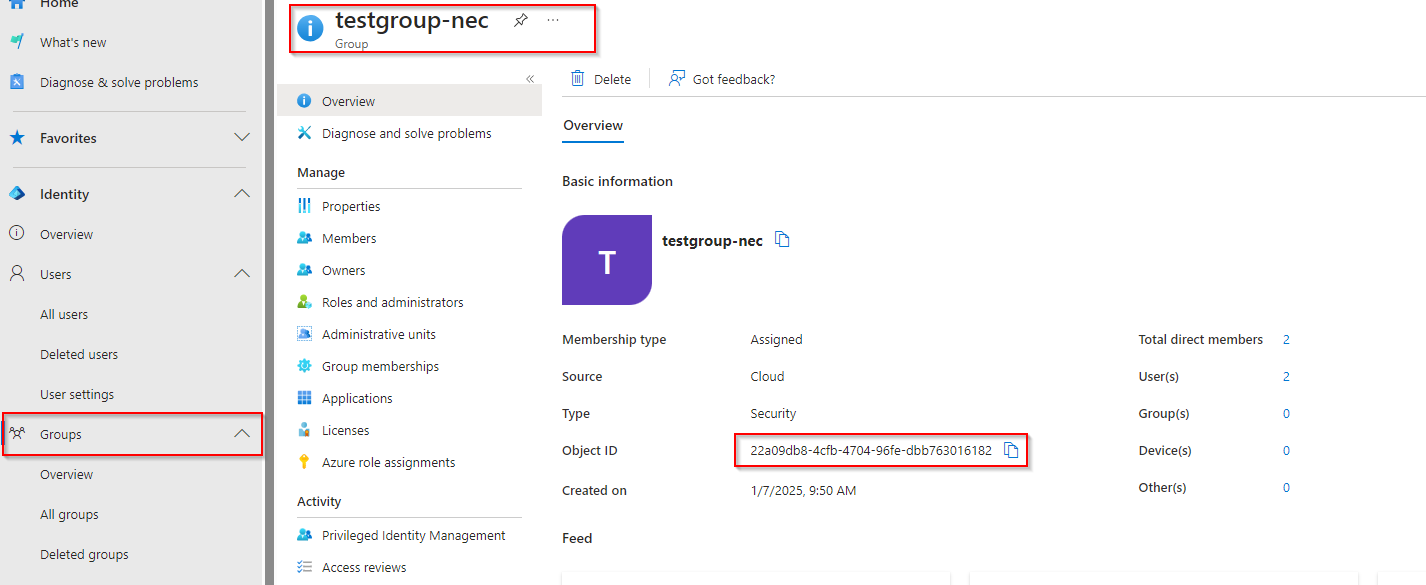
- In VMware Cloud Director, use “Import Groups” and enter the object ID from Microsoft Entra.
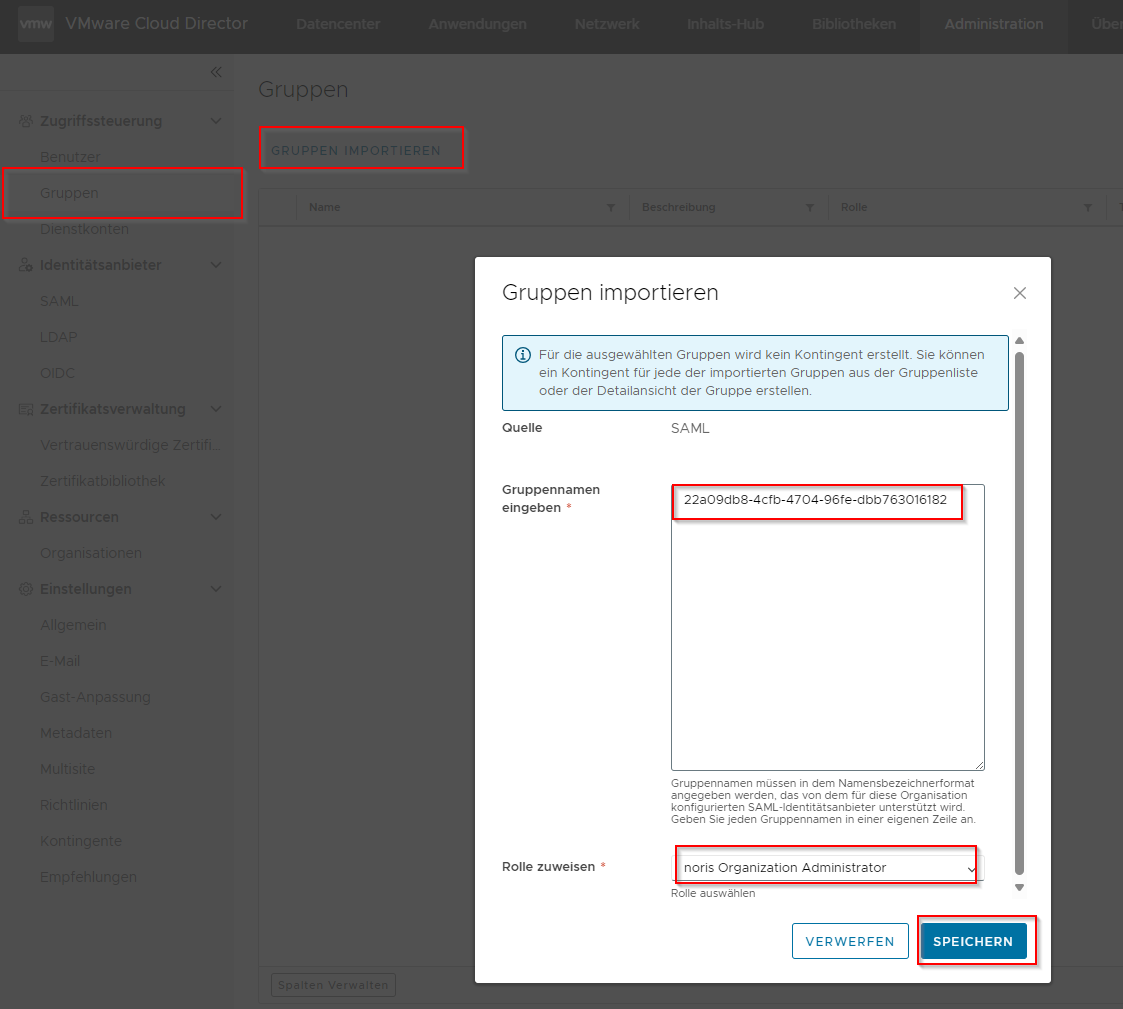
- Afterwards, the group name can also be entered in the description.