
Basic Information
Welcome to the user documentation for our VMware Cloud Foundation platform. This article gives you a basic overview of the noris Enterprise Cloud (nEC). All topic-specific articles are available in the sidebar.
We also recommend keeping the official VMware documentation at hand to build a basic understanding of the platform: techdocs.broadcom.com
Introduction to the nEC
Section titled “Introduction to the nEC”Which tools should I know? What is VMware Cloud Director?
Section titled “Which tools should I know? What is VMware Cloud Director?”VMware Cloud Director is the platform we use to offer our customers Infrastructure-as-a-Service (IaaS). With this platform, we provide flexible, personalized cloud services tailored to our customers’ specific requirements.
VMware Cloud Director plays a central role within our VMware Cloud Foundation (VCF) environment. It acts as a management layer that pools the underlying resources and makes them available to our customers in the form of virtual data centers. These virtual data centers have all the features of conventional physical data centers and contain network, storage, and compute resources.
Using VMware Cloud Director lets us automate the provisioning of services and resources, increase operational efficiency, and ensure compliance with policies and standards.
How is the nEC reachable?
Section titled “How is the nEC reachable?”To access VMware Cloud Director, please use the URL provided specifically for each customer. It is delivered by email:
- Nuremberg region:
https://vcd-nbg.nec.noris.de/tenant/$ID/ - Munich region:
https://vcd-muc.nec.noris.de/tenant/$ID/
In this URL, $ID is replaced by your specific customer ID. This customer-specific information is provided by email and should be kept safe.
Important note about the orgadm access
Section titled “Important note about the orgadm access”During setup, you receive orgadm access. This account has all rights within the VMware Cloud Director environment. We strongly recommend changing the password you were sent as soon as possible, again using a secure password that meets BSI standards.
We can set up two-factor authentication for you on request.
Creating access for workload management
Section titled “Creating access for workload management”Instead, you should use your own authentication source such as SAML or OIDC. A guide for connecting Microsoft Entra can be found under Connecting Your Own IDP (Microsoft Entra).
Afterwards, you should create additional accounts that each hold only the rights they need (principle of least privilege).
Please note that the available menu options and navigation depend on the specific permissions and roles assigned to your user account.
Logging in and navigating Cloud Director
Section titled “Logging in and navigating Cloud Director”After logging into VMware Cloud Director, a navigation bar with various menu options is located at the top of the page:
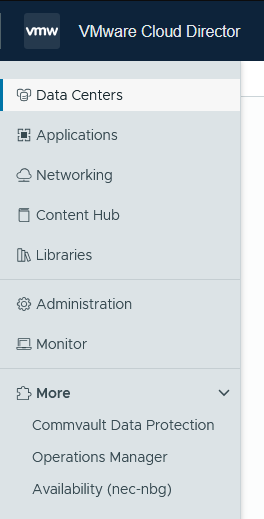
- Data Centers: manage and monitor the configured virtual data centers and their resources, details on compute, storage, and network resources.
- Applications: manage, view, and configure applications and services in your cloud environment.
- Networking: create, configure, and delete network resources, set security policies, view network diagrams.
- Content Hub: access stored catalogs and media; create and manage library entries.
- Administration: manage user accounts and roles, configure security policies and system settings. During setup you receive
orgadminaccess from noris, which has all rights. - Monitor: monitor the performance and usage of your cloud resources, system logs, alarms, reports.
- Commvault Data Protection: access the Commvault data protection tools, backup jobs, restores, data protection policies.
- Operations Manager: monitor and manage the performance and health of your cloud environment, alarms, performance reports, infrastructure changes.
- Availability: manage the availability of your resources and services, monitor status, create availability plans and recovery strategies.
Understanding the VCF organization
Section titled “Understanding the VCF organization”Structure of a Virtual Data Center (VDC)
Section titled “Structure of a Virtual Data Center (VDC)”The Virtual Data Center is the basic unit of VMware Cloud Foundation (VCF) and the environment you work in. It bundles the virtual resources for your machines and comes with its own network and its own security settings. Multiple applications therefore run separately and independently of each other.
Three terms are fundamental to this:
| Term | Meaning |
|---|---|
| VDC | Bundles compute, storage, and networking, isolated from other VDCs. |
| Cluster | Group of ESXi hosts that pool their resources. A VDC consists of at least one cluster. |
| vApp | Group of virtual machines that together form an application or a service. vApps are created inside a VDC. |
How are VDCs named in the nEC, and which SLA applies?
Section titled “How are VDCs named in the nEC, and which SLA applies?”The name of a VDC states its availability class and the location of the associated hosts. The nEC Public, managed via VMware Cloud Director, comes in two classes:
- Cluster-HA: highly available cluster within a single availability zone (AZ)
- Metro-FT: fault-tolerant cluster, stretched synchronously across two locations within a region
The naming scheme follows this structure (example):
| Cluster type | Country | Region | Data center | Zone | Organization ID | Organization VDC number |
|---|---|---|---|---|---|---|
| HA | D | N | 6 | A | 1650 | 1 |
The nEC spans numerous cities and data centers. For individual locations and their availability, our contacts will advise you: noris.de/kontakt.
The class also determines the availability noris commits to. HA and FT are the codes of the classes High Availability and Fault Tolerant in the standard SLA of noris network AG:
| Class | Class in the standard SLA | Availability |
|---|---|---|
| Cluster-HA | High Availability (HA) | ≥ 99.8% p. a. |
| Metro-FT | Fault Tolerant (FT) | ≥ 99.9% p. a. |
Response and resolution times, maintenance windows, and how availability is calculated are covered there as well: terms and conditions and standard SLA of noris network AG.
The nEC is a self-service platform, so the commitment covers the platform, not what you run on it. It is met when you are able to manage your resources in VMware Cloud Director through the interface or the API. Virtual machines, operating systems, middleware, and applications remain yours, including their configuration and backup. How available your application ends up being is decided by how redundantly you design it across classes and availability zones. We are glad to advise you on that, and on request noris takes over operations in full or in part as a managed service.
VMs and resources
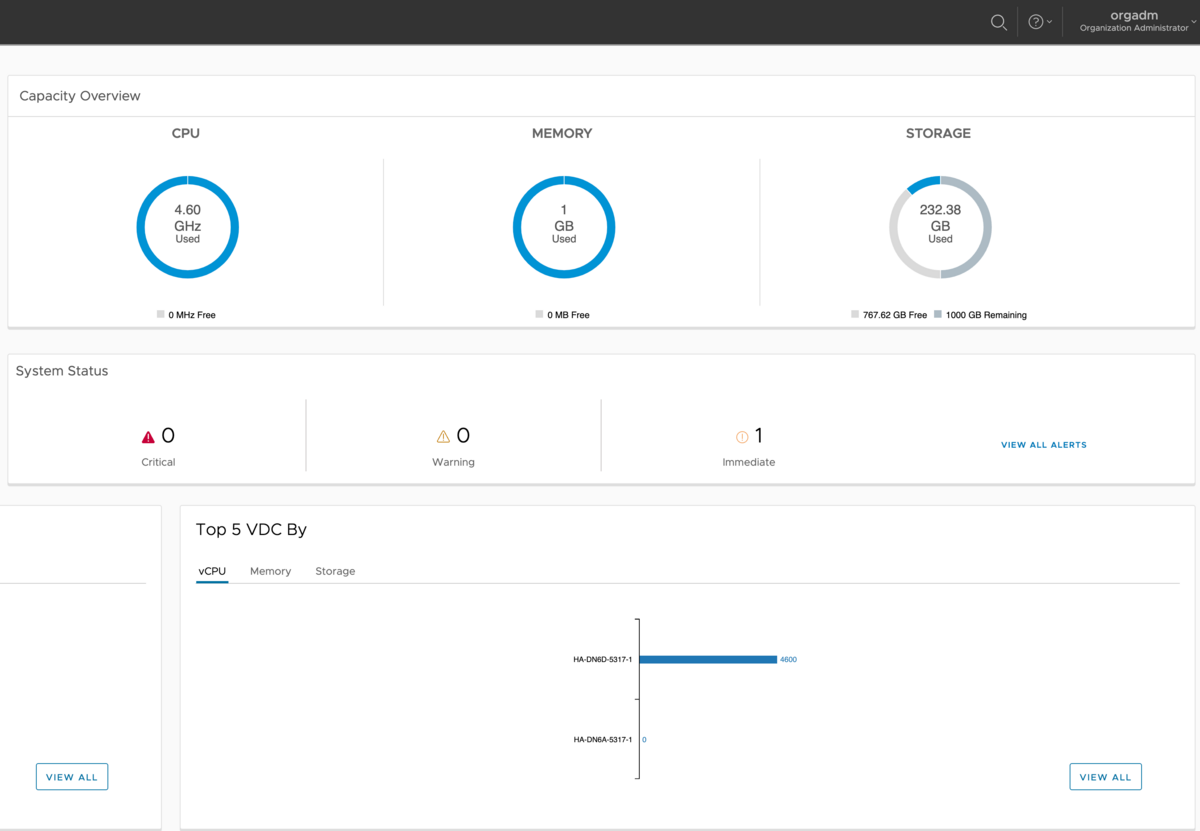
Section titled “VMs and resources”In the nEC, one CPU provides 2.3 GHz of compute power. The Datacenter view in VMware Cloud Director gives you a comprehensive view of the total used and free compute capacity of the respective orgVDC, so resources can be managed effectively and capacity bottlenecks identified early.
Two basic options are available for allocating virtual CPU resources:
- vCores: balanced performance with fair prioritization of resources, ideal for standard workloads without a constant need for high performance.
- Power vCores: higher priority in resource allocation thanks to additional “shares”, consistently high performance even under high system load, suitable for business-critical applications.
Both options can be chosen flexibly and scaled seamlessly within the noris Enterprise Cloud.
Storage
Section titled “Storage”Three storage classes are available:
- Ultra: high performance requirements and fast data access, business-critical applications, frequently used data.
- Performance: a balanced ratio of performance and cost.
- Mass: a cost-effective storage solution for less time-critical data and large data volumes.
Via VMware Cloud Director you choose the desired storage class and the required storage space in gigabytes (GB). The billing model is based on provisioned storage, you pay for the reserved storage space in the chosen storage classes; monthly billing is based on the total reserved storage amount.
Encryption
Section titled “Encryption”To ensure that your key material is known only to you, it is essential that you handle encryption of system components yourself, for example through disk encryption and/or application-level encryption. This is the only way to guarantee the highest level of security and control over your own data.
Billing via the cloud points catalog
Section titled “Billing via the cloud points catalog”Resources used, such as RAM, CPU, or specific features (e.g. storage), are measured hourly. Resources that are started and/or terminated between two measurement points trigger an event that is captured at the measurement time and included in the measurement. Provisioned resources are always billed for at least one hour.
Billing for the resources used on average per month is based on the currently valid cloud points catalog, and partial resources can also be captured. Example: if 151 GB of storage was provisioned and the points catalog rates 100 GB of storage, that point value is multiplied by a factor of 1.51. If the calculation of average resource usage results in a number with decimal places, it is rounded up and multiplied by the price per point; the resulting amount is rounded up to the nearest euro cent.
Quotas (virtual resource limits) are defined for all customer systems to cap the maximum cost. Quotas apply per customer system and can be increased on request.
The specific cloud points per resource and an interactive consumption calculator are available in the cloud points calculator.
Monitoring resource usage with Operations Manager
Section titled “Monitoring resource usage with Operations Manager”Operations Manager gives you an overview of the resources used and makes managing them easier. Usage is expressed in cloud points, which represent the resources used from VMware and Commvault and are later consolidated in the billing system.
- Log in to VMware Cloud Director with your credentials.
- Navigate to the
Moremenu item. - Select
Operations Managerfrom the list of available applications. - Operations Manager shows an overview of the current resources and the associated cloud points, details on CPU usage, memory used, and available storage.
- Use the provided tools and reports to optimize resource usage, and set alarms for resource or point thresholds to avoid unexpected point consumption.
The number of cloud points consumed depends on several factors: the type of resources used, the duration of use, and the specific tariff of the cloud contract. The defined protection quotas can be adjusted in consultation with the responsible account manager.
Known vulnerabilities
Section titled “Known vulnerabilities”To stay informed about known vulnerabilities in the products used, information is available on the manufacturers’ pages:
- VMware: broadcom.com/support/vmware-security-advisories
- Commvault: documentation.commvault.com/securityadvisories
Support
Section titled “Support”- For questions for our support team or to report a bug, reach us at support@noris.de.
- Communication can be in German (de) or English (en).
Reporting security issues
Section titled “Reporting security issues”For security issues or to report security incidents, please contact the noris Security Operations Center (SOC): noris.de/.well-known/security.txt