
Customer Portal: User Guide
This document gives you information on using the noris customer portal. If you still have questions despite the information provided here, please contact our service desk or your known contacts at noris.
How to reach noris network AG
Section titled “How to reach noris network AG”
noris customer portal
Section titled “noris customer portal”Introduction to the noris customer portal
Section titled “Introduction to the noris customer portal”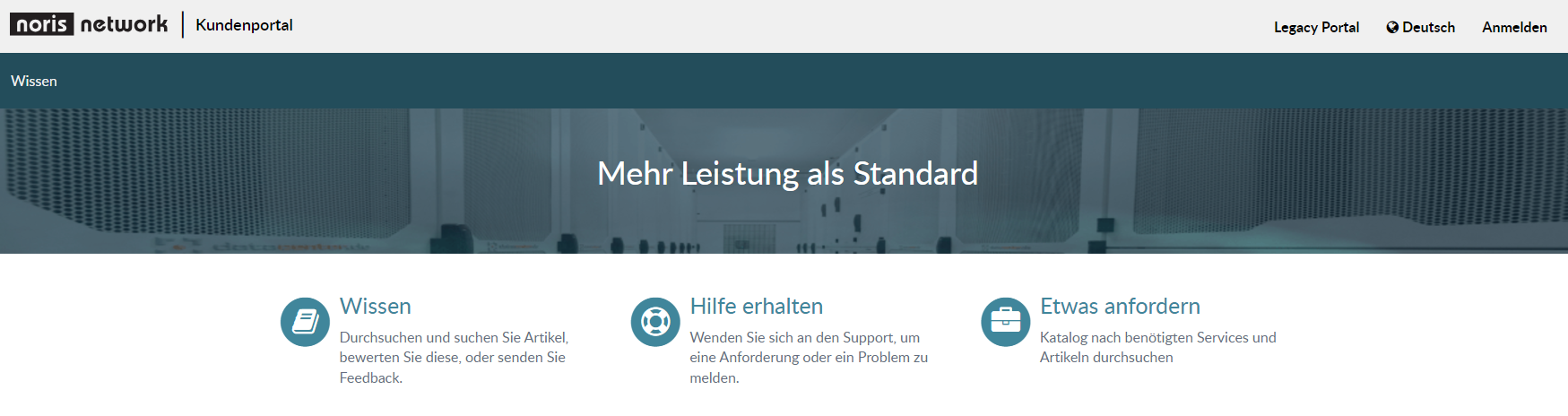
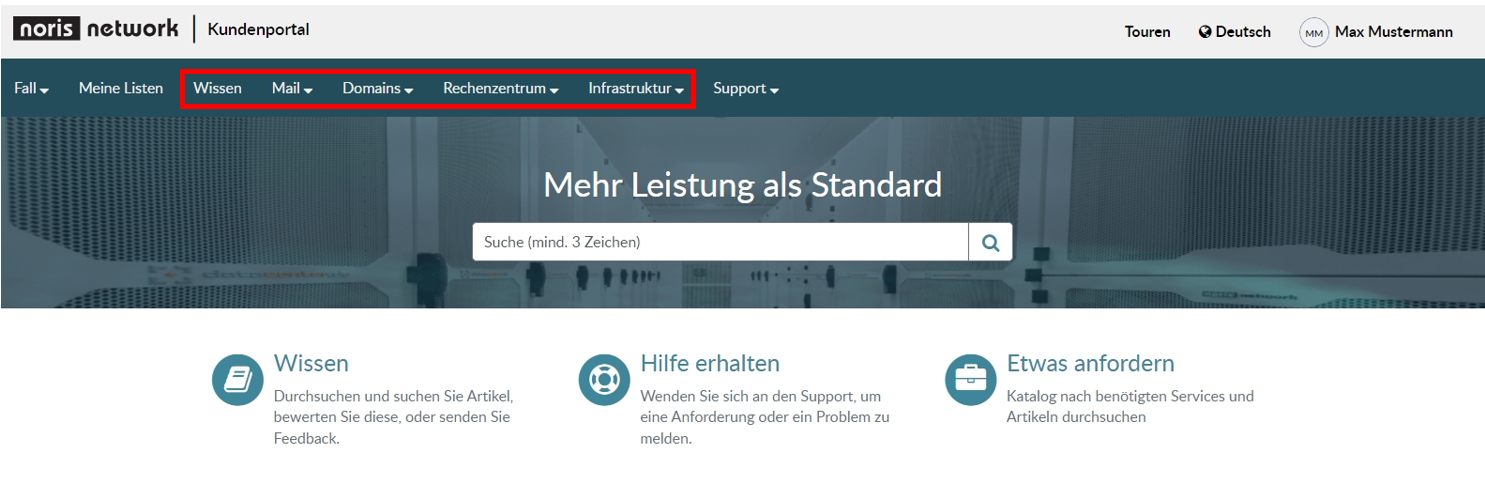
View in the noris customer portal after login
Section titled “View in the noris customer portal after login”- The scope of the information displayed depends on the logged-in user and their assigned roles. A user with the Customer Administrator role has access to all customer-related data.
- Functions such as mail, domains, data center, and infrastructure are currently handled via the legacy portal. Clicking these menu items logs you in automatically:
How do I manage customer contacts?
Section titled “How do I manage customer contacts?”Navigating to customer contacts
Section titled “Navigating to customer contacts”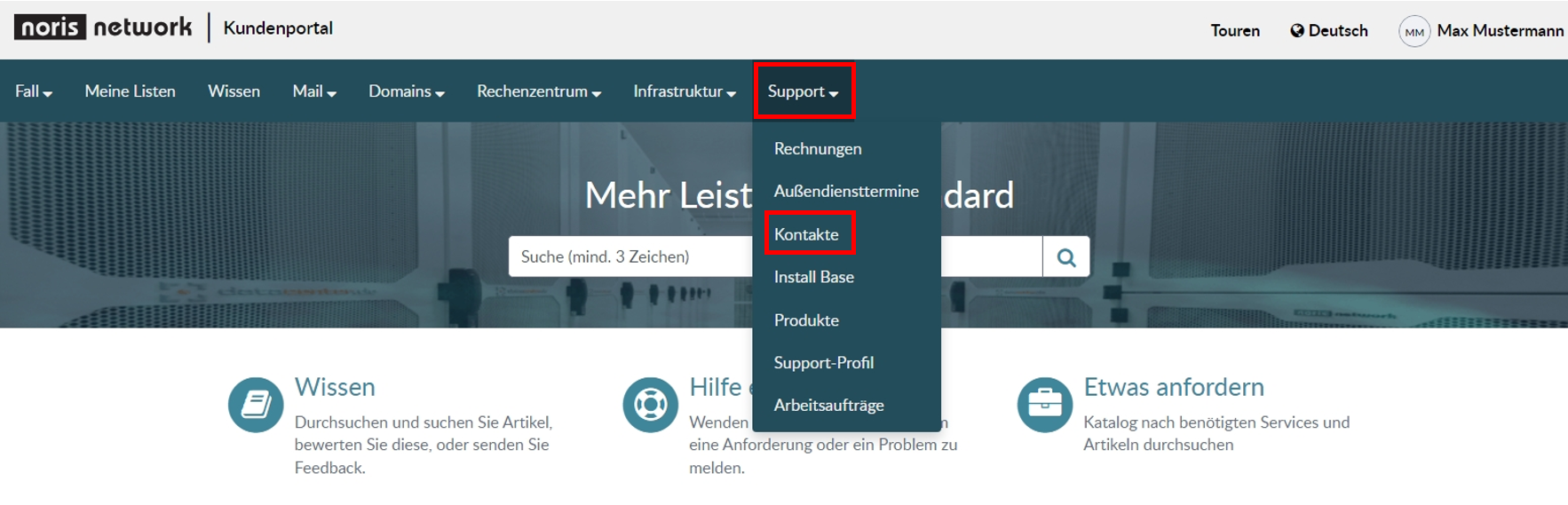
Creating new contacts or editing existing contacts
Section titled “Creating new contacts or editing existing contacts”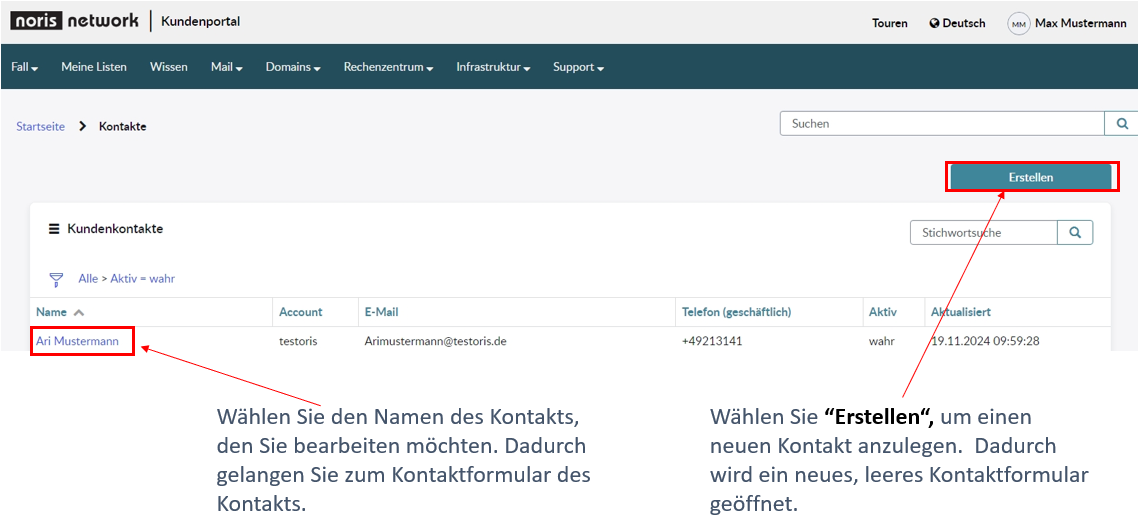
Creating new customer contacts
Section titled “Creating new customer contacts”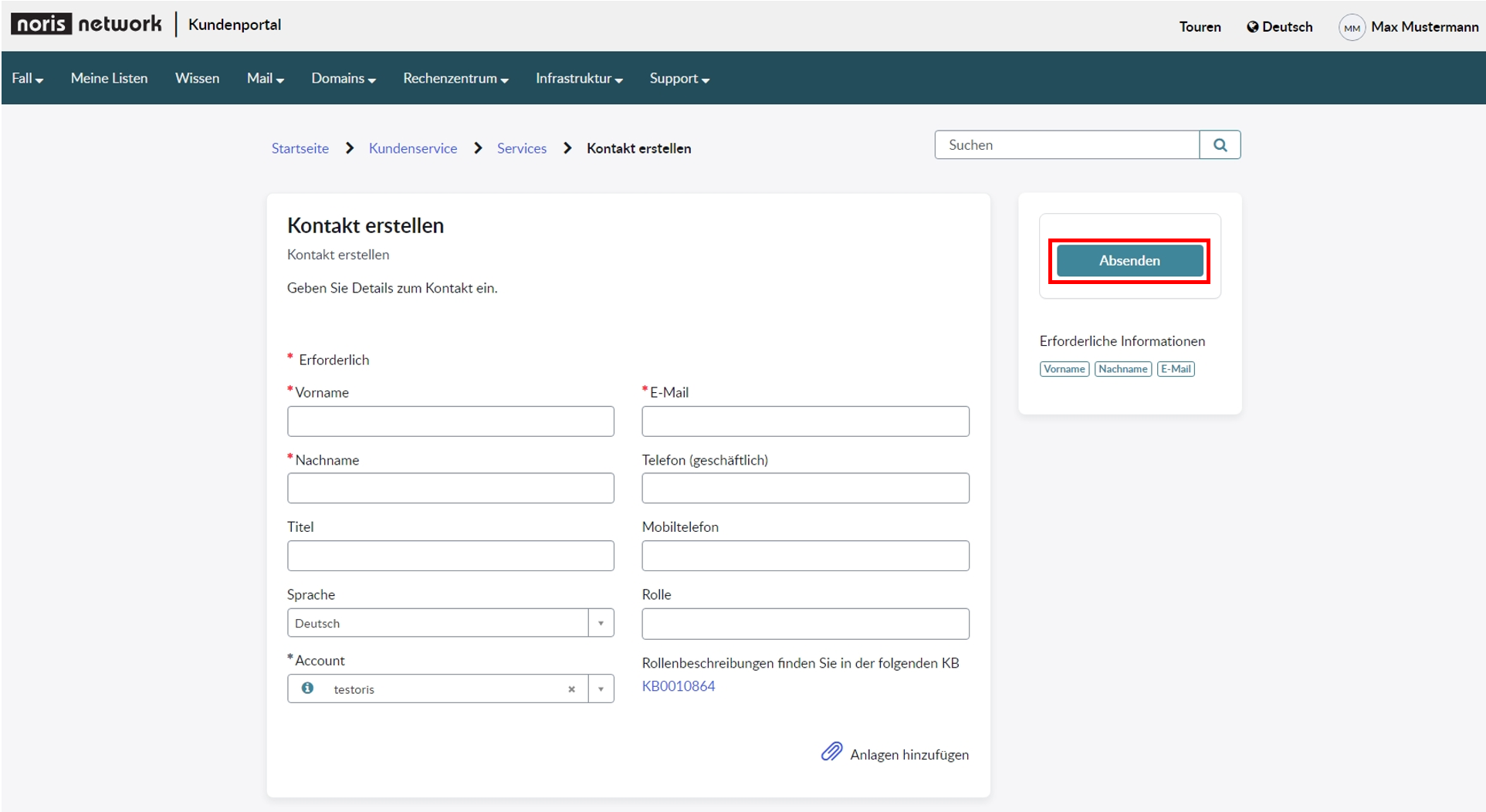
To create a new contact, the required fields in the form must be filled in (marked with a *). After submitting, the customer contact is created, and the new contact receives their password by email.
How to edit an existing contact
Section titled “How to edit an existing contact”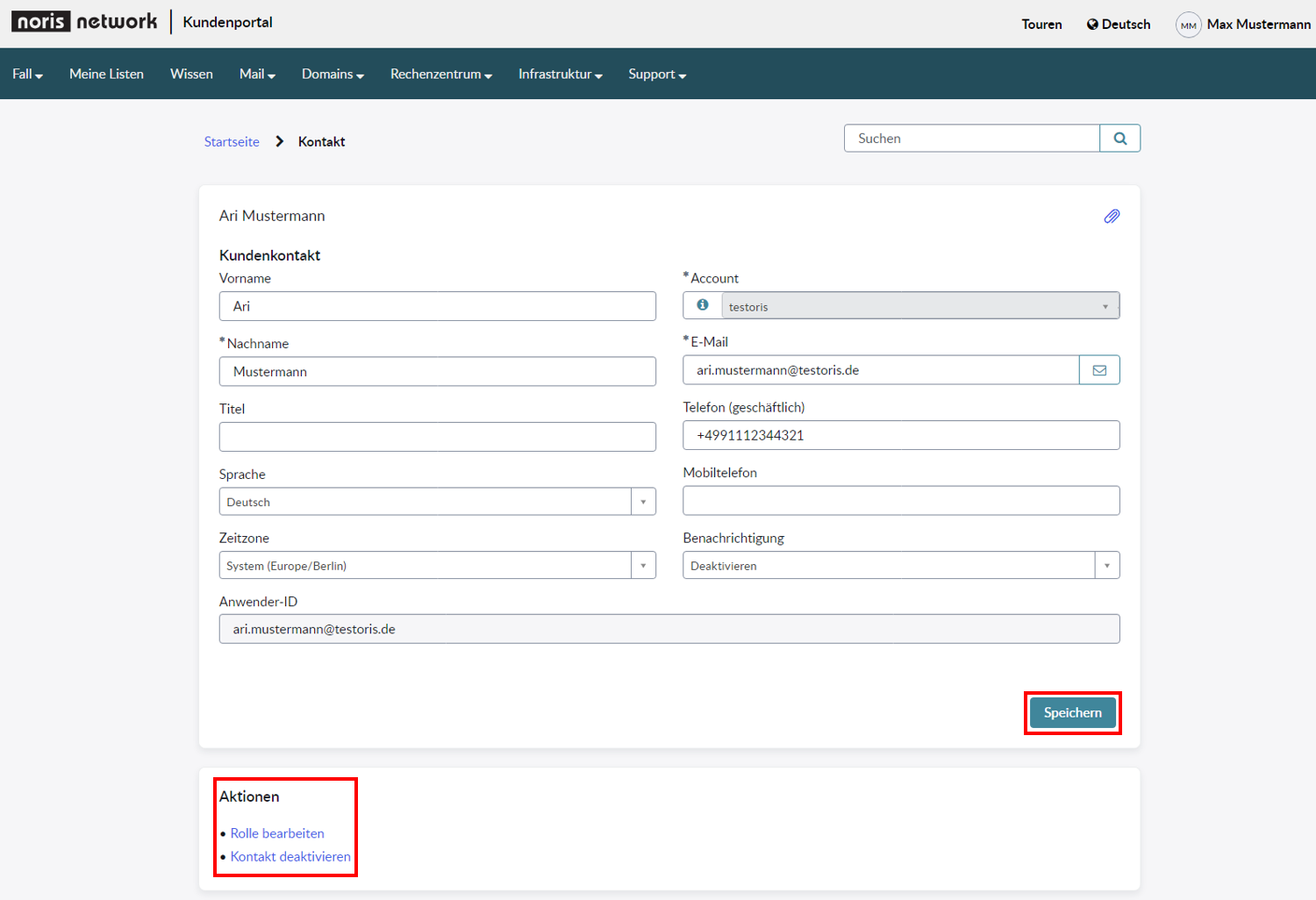
The contact form can now be edited. To save the changes made, select “Save”.
Scroll down a bit to see the “Actions” tab. There you can edit the assigned roles or disable the login for this contact.
Knowledge in the noris customer portal
Section titled “Knowledge in the noris customer portal”Introduction to the Knowledge area
Section titled “Introduction to the Knowledge area”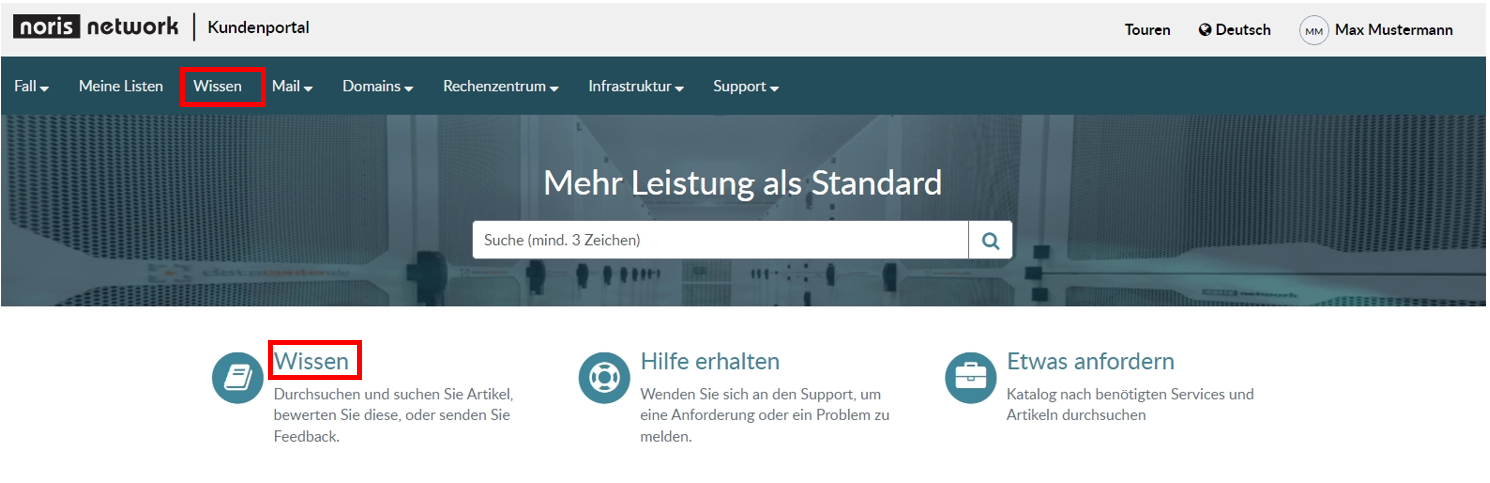
Knowledge homepage
Section titled “Knowledge homepage”The Knowledge area offers useful information on many topics. Some problems can be resolved quickly by checking whether a question has already been asked or an error has already been solved.
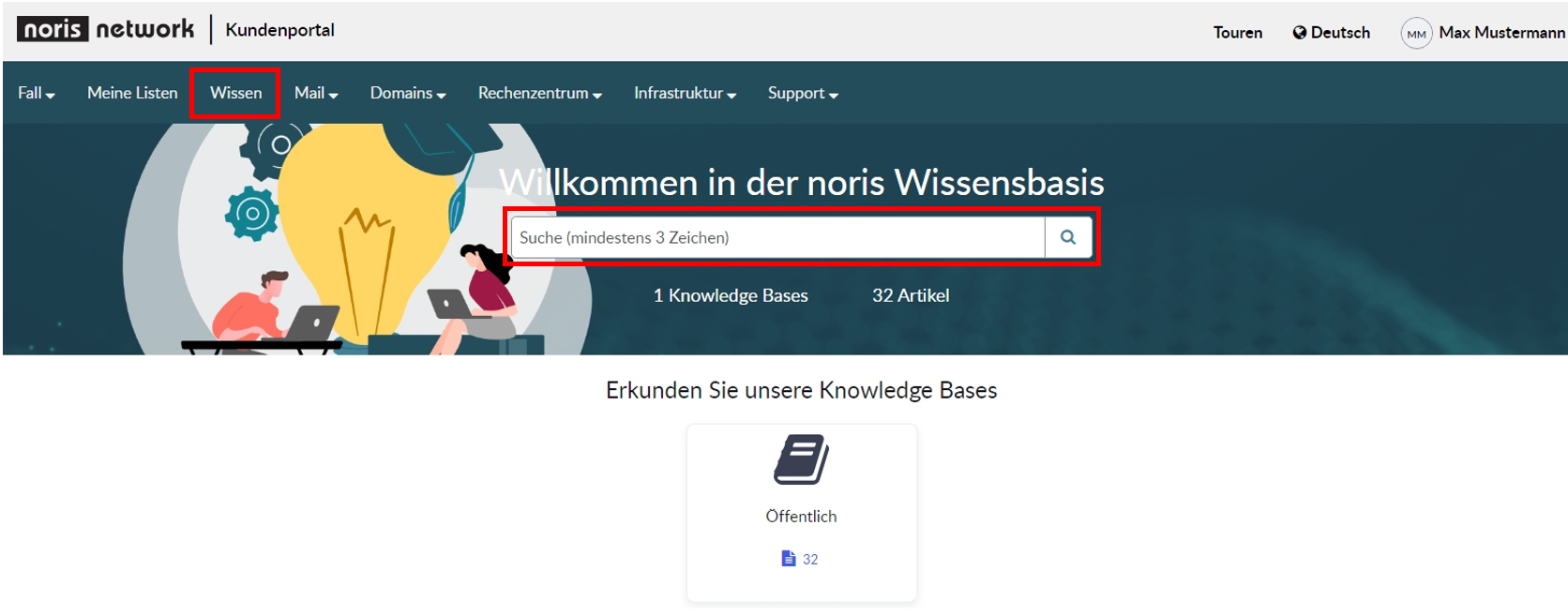
Using the search bar, you can simply search for your topic, the Knowledge area shows you all related articles.
Cases in the noris customer portal
Section titled “Cases in the noris customer portal”How to create a case
Section titled “How to create a case”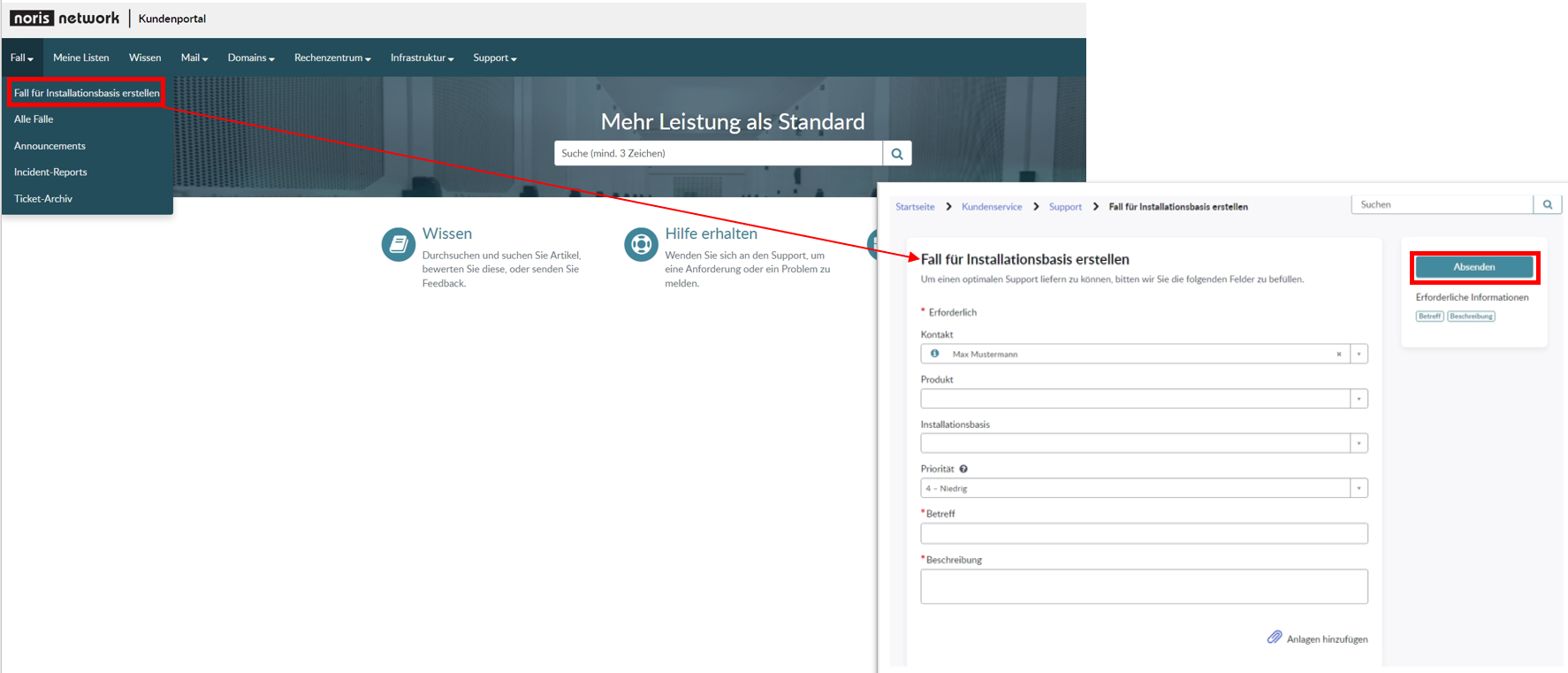
Mandatory fields (marked with a *):
- Subject: the title of the case in the case list.
- Description: describe your request here.
Optional fields:
- Products: select the product provided to you by noris.
- Installation base: select the affected configuration item.
- Priority: 1 to 4. To report an incident with priority 1 or 2, an additional phone call to the service desk is required.